Guide for Moderators

Created: November 10, 2021
Last Updated: June 14, 2026
Welcome to the moderating team! As a moderator there is a lot of information to learn. Please take your time with the information and if you have any questions ask in Mod chat.
Note: Moderators were selected per their language. Moderate the language you were brought on to moderate and do not turn on any chatrooms that you previously would have never visited before you were selected as a moderator. This can cause rifts in those communities if a new moderator shows up and they have never seen them before. Also, don’t put extra “work” on yourself by moderating more chatrooms! We want you to still enjoy playing the game and not think of moderating comes before you having fun!
 Sim Companies S.R.O.
Staff:
Patrik, Khorinis, Stannis, The Center
Patrik, is the owner of Sim Companies and lead developer. Khorinis, is a developer. Stannis, is the graphic designer. The Center, is support (Bug Reports, Moderators, Translators, and general administration).
Admins:
Patrik, Khrorinis, The Center
If you have any issues that you want to discuss please contact one of the admins. This can apply to other moderator's behavior, audits, questions about the game.
Graphics:
Stannis - for any complaints regarding graphics / UI, marketing or any visuals in general
Moderators Chat
- Topics discussed and information shared within the Moderator chat is considered secret and should not be shared outside of the group (unless permission is given). We have removed moderators that have broken this rule.
-
Don't be afraid to ask questions in moderators chat. Be aware that we are a global game; everyone has different schedules. If you asked a question that does not get answered; please raise it again.
-
Join in the discussions that happen there and read it daily to keep informed about what is happening with the game.
-
If the developers are asking for feedback; give them actual constructive criticism. They want to hear your opinions on game mechanics and if something needs to be changed or not. Don't be afraid to speak up.
-
It is highly suggested that Moderators back read the Moderators chat room. This helps you keep informed of any changes that are occurring or any issues that are going on within the game itself.
-
We are able to contact the developers by using @dev or @devs; this only works in moderator chat. They get notified about any issue or question you may have.
- Information shared with supporters is considered public, we can't control leaking from the supporter group and everything shared there leaks eventually. However, we need to be mindful of supporters getting a perk of having information upfront. We, as MODs, should not actively spread the information. (unless permission given, or 2 days have passed). Staff of Sim Companies however are the exception to this rule.
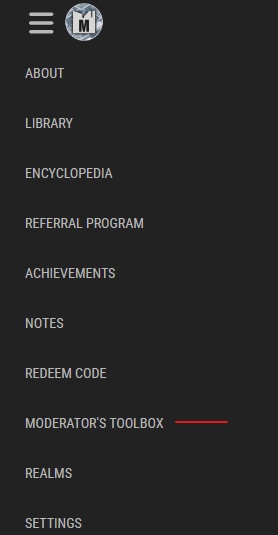
Moderator's Toolbox
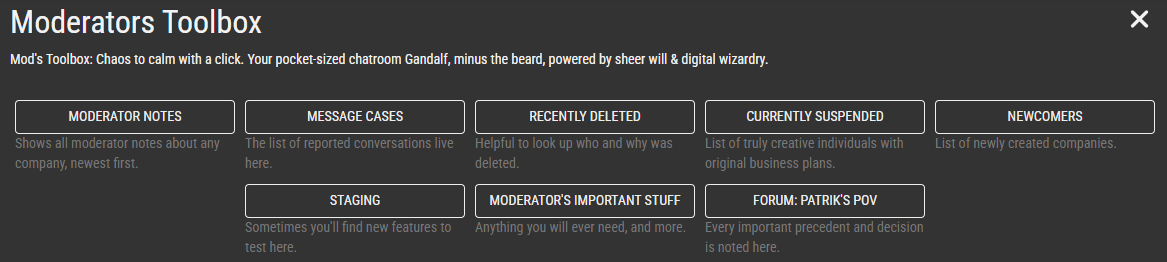
As a moderator you now have access to the Moderator's Toolbox. The toolbox contains access to helpful resources for moderators.
- Moderator's Notes - a page of all the recent mod notes on player's profiles.
- Message Cases - aka Private Message cases. Showing all the recent cases closed and open.
- Recently Deleted - shows a list of players that have been deleted.
- User - player deleted themselves
- Admin - player was deleted by an admin (Patrik, Khorinis, The Center)
- FPA - player was deleted by the Fair Play Association
- Currently Suspended - shows all players that are currently suspended and the reason as to why.
- Newcomers - a list of all new accounts within the day of operation. It does include hashed IP so you can see if there are possible alternate accounts being created.
- Staging - Access to the Test Server. Its a separate copy of the Sim Companies where we can test updates before being applied to the main game.
- Moderator's Important Stuff - Link to Bookstack for the Code of Conduct, Guide for Moderators, and Changelog Archive.
- Forum - We no longer use the forum this should be removed from the toolbox.
Answering Questions from Players and other Possible Issues in Chat
There will be questions asked about the game in just about every channel. Its our job to answer those questions but it is also not mandatory.
-
If you don't know the answer to a question; do not answer it. Its better to not answer than to give the wrong answer. Try to see if anyone else can help with answering the question.
-
Anything to do with payments in game with Sim Boosts or packages need to be sent to Patrik. Patrik handles all the cash transactions.
-
If the player is reporting a glitch or a bug, have them "report a bug" themselves. If they don't want to do that then try to mention it in moderators chat about a player bug. Or report the bug yourself using the report a bug feature.
-
If you get someone reporting another player for inappropriate Private Messages; tell that player report that player using the report option in the Private Message Settings OR to "block" the other player. Blocking ("ignore") also blocks incoming contracts. We as moderators do not police Private Messages; except for when we get a Private Message Case in Mod chat.
-
When answering questions try to send players to the guides that exist in game and on the forum. It is far easier to send a player to one of the guides than to have to explain the game in fine detail yourself. This will not always work but at least you have told them where they can find the information.
There may be a time you are faced with dealing with depressed individuals that bring up Suicide in the chats. Do not warn or chat ban these individuals. Please send a link to a suicide hotline.
- United States: 988 Suicide and Crisis Lifeline
- World Wide: Befrienders Worldwide
Supporter Chat
As a moderator you do have access to Supporter Chat. Do not think you cannot talk there. You earned the right to speak there by being a moderator. If one of the Supporter's contacts you via Private Message and says you are not allowed to speak there; you can send them to Patrik.
Supporter Chat for the most part doesn't need to be moderated. But, it can be unruly sometimes. We have to step in if it gets out of control in that chat room.
Supporters have the ability to post images to chat. It is the only chat room in which they can do that.
Chat Bans
When simple chat bans are given, the accounts receive a chat ban based on a progressive system starting at 2 hours; and follows this pattern: 2, 2, 8, 16, 32, 64….followed by invisibility
Do bans reset? "Yes, it depends on number of bans in the last 2 months" -patrik
Invisibility Bans are 30 days; It's not meant as a punishment, or to get players to cool off.
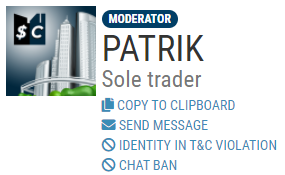
To chat ban a player you will need to go into that company's profile page:
"If this is a first and minor offense, I confirm I warned the user first in the chat or through PM."
The 2 options are:
Yes, ban and Extreme situation - invisibility
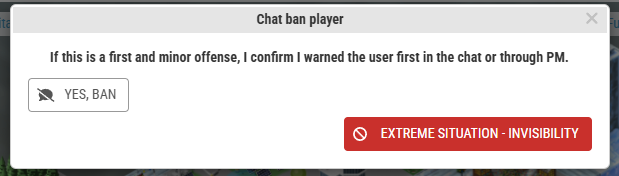
You will have to give a reason for the chat ban.
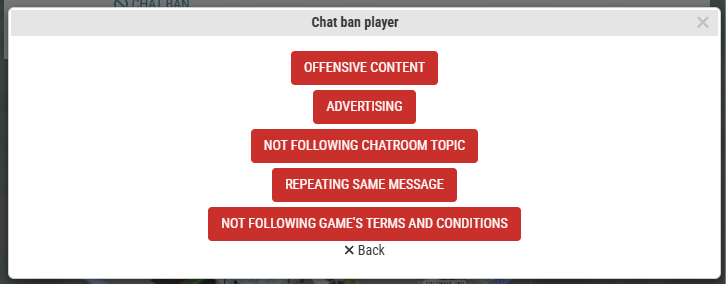
Once the chat ban is issued there will be a record of it shown in Moderators chat.

It will list the Moderator that issued the ban; the player the ban was issued to; the reason; and for how long the chat ban lasts.
Chat bans lock players from using all the chats, including Private Messages.
Invisibility Ban
Invisible bans are different. The moderators can see those players chatting but the rest of the players cannot. Those players that are invisible can only Private Message moderators. Everyone else the player PMs, will be invisible to the players they PM.
When do you use an invisibility ban?
- When players are making an alternate account after a chat ban to disrupt chat.
- In extreme instances. Please discuss in mod chat before applying an invisible ban. Do not use invisibility as a punishment ban. Ban as you normally would.
Please note: if you see one of the staff of the game applying an Invisible ban without discussion; this does not mean you are allowed to do the same. The admins have authority to ban without discussion and could be related to complaints that were not shown or discussed in mod chat.
Reasons for Chat Bans
Offensive Content - Cussing in chat. Skirting the filter. Bullying other players. Playing inappropriate pranks/jokes in chat.
Advertising - Advertising other websites (games, personal, etc.) by posting links in chat. Advertising their own sales for products in the wrong chat rooms. Note: We do allow players to post YouTube links to music in Social chat.
Not Following Chatroom Topic - Self explanatory but usually this ban originates from Help chat. Players like to treat it as a social chat room.
Repeating Same Message - Spamming the same message over and over or just spamming chat with nonsense.
Not Following Games Terms and Conditions - These types of bans are for anything not covered in the first 4 reasons. Creating multiple accounts to get past chat bans. Or inappropriate names or avatars (pfp). There is a lot of things that can be covered under the T&C.
Note: When players first start the game many do not set their language. This causes players to start in the English chatrooms by default. If we see players speaking other languages we need to figure out what they are saying first. Do not assume the worst. There are multiple ways to know what they are saying. Copy and paste to a translation app/website like DeepL or Google Translate. We should be directing these players on where they can find the chat rooms they want or tell them they need to speak English to communicate with everyone in the English chats.
As a moderator you will need to know exactly what is in the Terms & Conditions. Players will question the rules and you have to be able to point to where things are stated in the T&C. If you do not know the answer ask in moderator chat for assistance.
Using the chat ban Not Following Games Terms and Conditions on the same players/accounts that show the same IP will result in a temporary IP ban that lasts for 4 days.
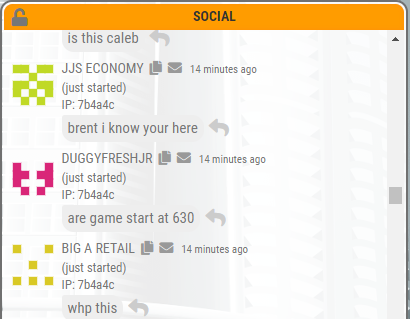
Situations similar to this in Social chat happen. And the group becomes unruly in chat. Could be a class or could be someone operating a bunch of accounts. We can see their IPs just below their names. In this example this is most likely just a class. They are talking about being in a teachers class and are referring to each other by their first names.
Lifting Chat Bans:
To lift (remove) a chat ban go to the player's profile and click on the trashcan for the ban listed.
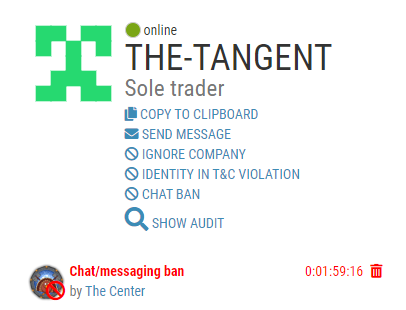

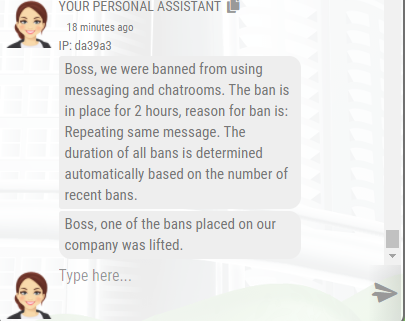
The player will get a notification they were unbanned by their PA and a notification in Moderator chat will also inform who was unbanned by what moderator.

Auditors have the ability to unban any ban placed on an account.
Moderator Notes
Moderators can use the Moderator note section on players profiles. Leaving comments on why they were warned for Profile Violation or any other reason there would be a note. Only moderators can see these notes and are shared viewing by all moderators. To add a note; press on the “+ADD NOTE” button.
The date and moderator will automatically be filled into the note.
The typical way in which we should fill out any mod note is listing:
- Infraction (type of ban)
- Reason for ban/warning
- Screenshots of the chat (you can use report a bug to upload an image or use any image sharing website)
- If the chat ban originated from a PM moderation case you can put in the Case Number; followed by a short reason for the ban.
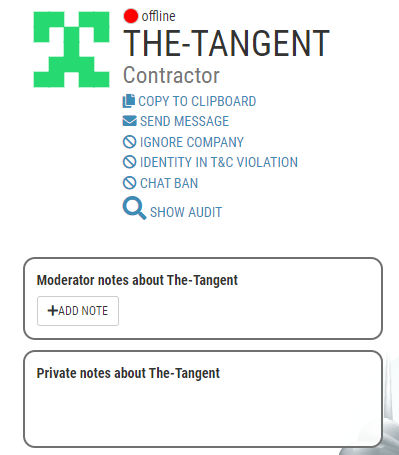
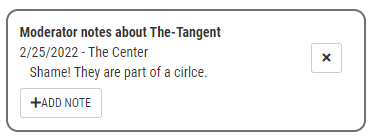

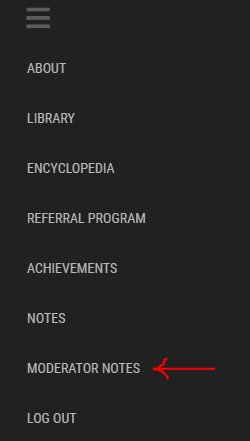
The page where all the moderator notes are located is in the drop-down at the top. This will show all of the notes made by the moderators. Starting with the most recent made.
Message Cases
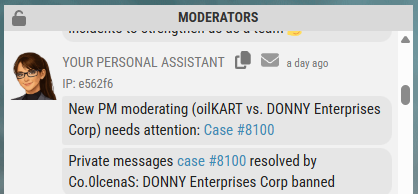
Each case is different and each case may have different languages being shown. If you do not speak the language being presented; please do not rule on the case.
All cases can be accessed through the Moderator's toolbox (Message Cases).
After reviewing the case you have options on how to close the case.
- Ban Reporter
- Ban Offender
- No Offense (no bans for either party)
- Ban Both
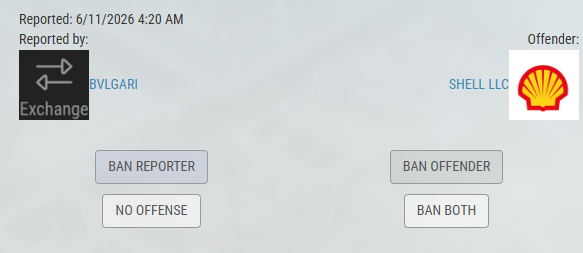
If you are unsure about what to do with a particular case; ask in mod chat for opinions from other moderators.

Deleting Chat Messages
We have the ability to delete specific messages in chat. To do so click/press on the chat bubble of the chat violation. You will see a trashcan/bin over the chat. Selecting the trash icon brings up a menu to verify that you want to delete that message.
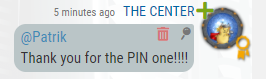
Reasons for use:
-
Deleting sales in wrong chat rooms.
-
Links to other websites that are not approved.
-
Vulgar chat
Still chat ban as you normally would. If you see a sales chat in the wrong chat room delete the message and warn the player not to do it again. If they repeat the same action then we chat ban as normal.
Notes:
-
Cannot delete messages in Moderator chat.
-
Cannot delete messages in Private Messages.
Profile Violations
Players that have questionable names and/or avatars (pic, pfp) and their profiles have questionable content.
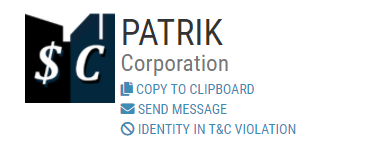
Selecting the Identity in T&C Violation on player's profiles will bring up the violation menu:
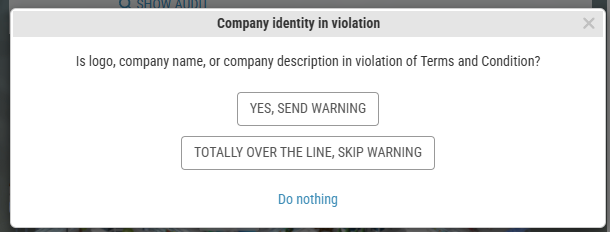
Pressing on; Yes, Send Warning - will send the player a message via the Personal Assistant (PA) that their profile is in violation. A message in mod chat will be sent 24 hours after the warning to see if the player has complied with the warning and changed whatever was in violation. If they have not done so then you press on the next option...
Pressing on; Totally over the line, Skip Warning - will automatically assign the player with a new name (random name) and wipe their profile information.
Note: Issuing a violation will apply to both realms. Do not warn both realms about an identity violation; as that will result in an immediate profile name and logo change.

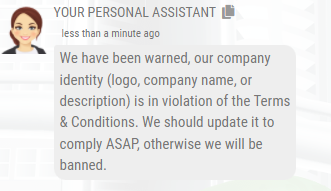
Note: when giving out profile violations to any account below level 3 will automatically be deleted. This is used when you know someone keeps coming back with new accounts and trolling chat. Once they hit level 3 then their accounts are renamed and they are locked out of changing their profile information by the days listed on the ban in Mod chat.
Reasons for Profile Violations:
-
Avatar (pfp) picture is inappropriate. Nudity, Bloody, Gory, etc.
-
Company profile - contains a blacklist, links to websites for advertising, talking badly about other players and/or moderators, cussing, etc.
Please Note:
Identity warnings should always be issued first; except in extreme cases.
The only acceptable times are:
- impersonating game staff and moderators.
- using game logos such as the Sim Companies logo and PAs
- Nudity
- Grotesque Images
If you are unsure please ask in mod chat before issuing a ban.
Player Profile information
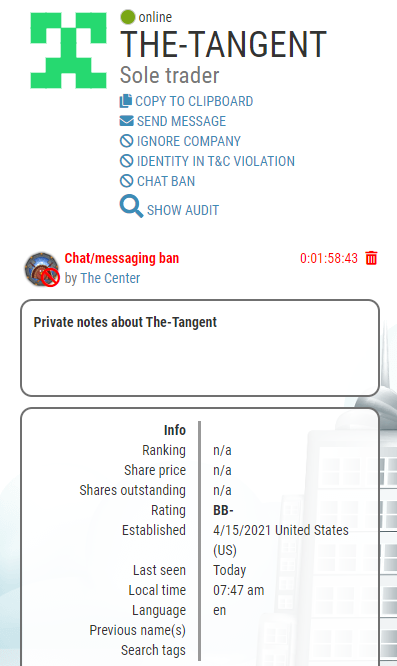

As moderator you can see previous bans, Language Set (Language) , and where the account was established by the Country Code of the account (ie, US = United States)
If you are unsure of the country code you can just google it: "Country code US"
Auditing Accounts:
Currently there are three (3) moderators that can audit accounts; Patrik, Khorinis, and The Center. If you suspect players but are not sure you can ask one of the auditors to to check out the accounts in question. The audit can provide more insight not available to mods into whether players are operating multiple accounts or cross-trading.
Bug Report Outage Announcements
If the game is acting strange and/or there are reported issues that everyone can see; we can make an announcement on the Bug Report page in order to stop players from reporting the same issue multiple times.
At the bottom of the bug report there is a RED box “ADD OUTAGE ANNOUCEMENT”
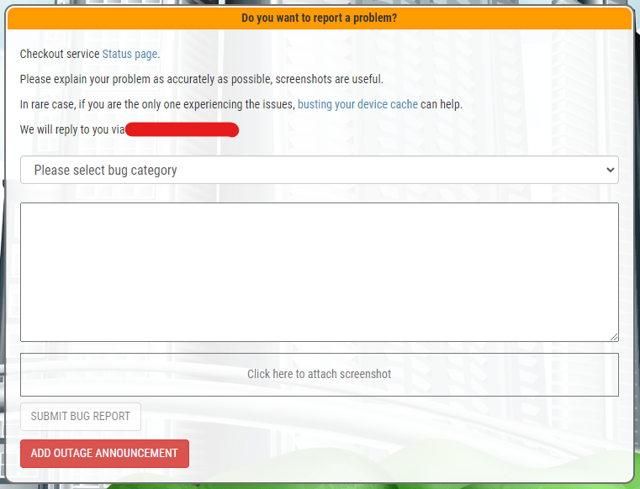

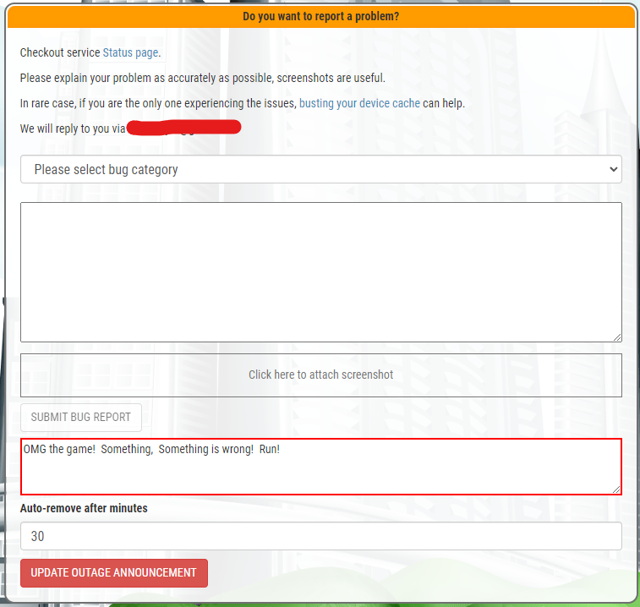
Will have to enter in the known issue and set the time for the auto-remove.
Chat Pins
Moderators have the ability to "pin" a comment in any chatroom. Usually this is done by Patrik. Though, there are instances when Patrik is not around and there needs to be a chat notification given out so players know there is an issue.
To pin a comment; hit the grey pin that shows on the chat bubble. It will remove the comment from chat and pin it to the top of the chatroom you are located. To remove the pin you need to click on the same location where the pin was when it was pinned. Do not try to click on the big blue pin.
Adding Images to Chat
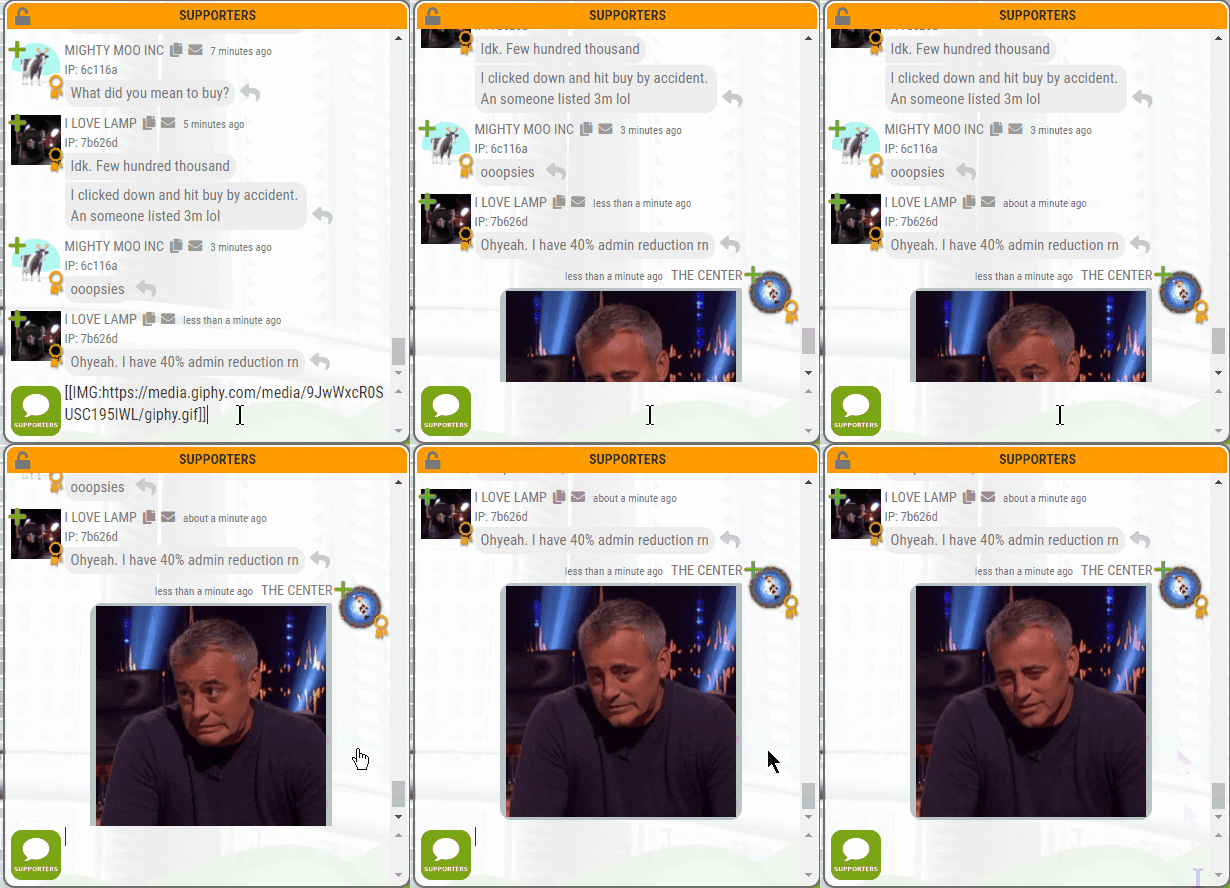
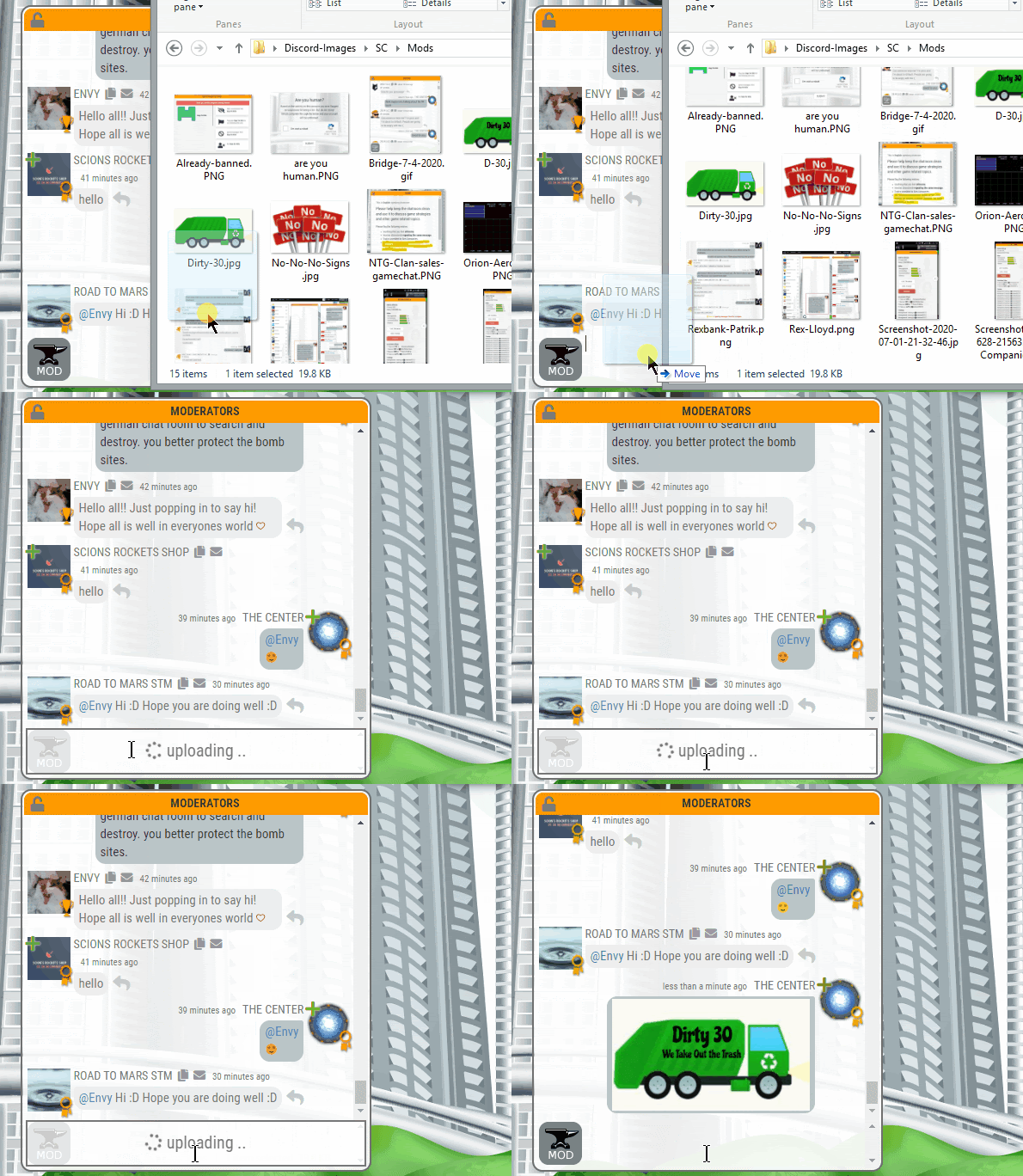
Images and Gifs can be added to chat. There are two ways to do this:
1.) Post images straight from their device by dragging and dropping them into chat. This can be done in any chatroom. Mostly used for educational or bug reporting reasons. But, we are known to have some fun with it too.
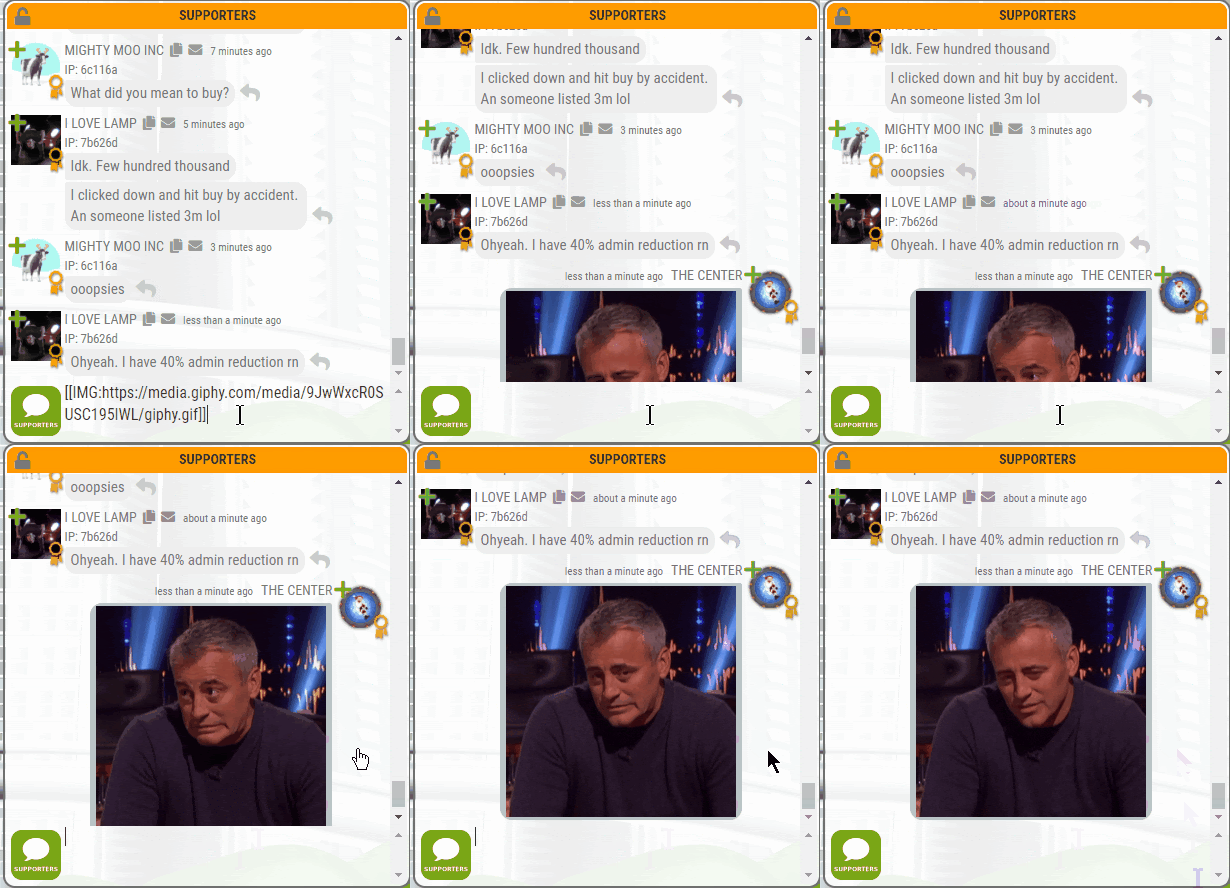
2.) By using the following code to link any outside sourced image/gif. [[IMG:insert-link]] This has to be exactly as shown. IMG has to be capital and no spaces between the colon and the link.
Chatroom History
-
Chat history for all* the chat rooms that are public is 24 hours.
-
Private Messages are 3 months between players.
-
Personal Assistant (PA) messages are infinite (until a reset).
*Exception is Mod chat.
The Sim Companies Times
Before Publishing:
Every moderator has access to the Sim Times before publishing.
Editors can add, remove, and move around articles,
There are 2 ways to add articles:
-
Submit an article to the Pending Articles google document and wait in the queue (mods have seniority to be published).
-
Add one yourself to the paper, but please inform Moderator chat that you are doing so.
To add an article: (must be an Editor)
Find the +Free Column Article at the bottom
Once added you'll see a new article that can be edited.
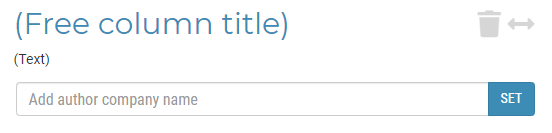
By clicking on the text it will open a box so that you can edit the Title (free column title) and the Body (text) of the article separately.
The Trashcan deletes the article. The <-> moves the article around inside the paper.
The article has the option to add a company name. The company has to be active valid company name.
Thursdays are publishing dates. 24 hours before publishing on Wednesday the automated articles are filled out (the charts of products and industries, and the tables for zoning, warehouse, etc.).
Once the paper is filled out on Wednesday; please do NOT press any of the buttons or add anything else to the paper.
Translations:
Moderators/Translators have access to previous Sim Time articles and can update them with translations. In order to change the previous articles you'll need to have your language set to the translation you are doing. The main English papers cannot be edited. Changing your language to anything other than English allows you to edit the articles. Just by clicking on the text of the articles you are able to replace the English version with the language you are translating.
Links:
Pending Articles - Google document to pending Sim Times articles (will have to ask permission in google to view the document; tell Patrik in game you need permission).